Running a local coding model on a MacBook with a healthy dose of RAM (32 GB in my case) is not a weekend project anymore. It's an hour at worst.
The models have gotten small enough to fit, fast enough to be useful, and the tooling around them has matured to the point where you can have a full AI coding setup — offline, private, zero API cost — in a couple of hours. Or less, if you just follow the steps in this post!
So here is the setup I use myself. I'll go through each piece in order.
What you're building
By the end of this guide you'll have:
- A local inference server running a capable coding model (Gemma 4 or Qwen 3.5)
- OpenCode connected to that local model instead of a cloud provider like OpenCode Zen, Github Copilot, or the OpenAI or Claude APIs.
- And of course, your Vist knowledge base, task list and second brain shared memory all connected to OpenCode via the Vist MCP, so your coding agent has persistent context across sessions!
No API keys. No data leaving your machine. No per-token bill at the end of the month. Sounds interesting, no?
Step 1: Install a local inference server
You have two options. Pick one.
Option A: Ollama (recommended)
Ollama is a CLI-first inference server. You install it, pull a model, and it runs a local REST API on port 11434. OpenCode supports it natively.
# macOS install via Homebrew
brew install ollama

# Or download the .dmg from ollama.com
Start the server:
ollama serve
That's a background process you'll want running before you open OpenCode. You can add it to your login items if you want it always available.
Option B: LM Studio
LM Studio is a GUI application. If you prefer clicking over typing, it's a good option. Download it from lmstudio.ai, install it like any other Mac app, and use it to download models through its built-in browser.
LM Studio also exposes an OpenAI-compatible local API (port 1234 by default), which OpenCode can connect to.
Which one to pick: Ollama if you're comfortable in a terminal. LM Studio if you want a GUI and a built-in model browser. The rest of this guide uses Ollama, but the OpenCode configuration for LM Studio is nearly identical.
Step 2: Download a model that fits in 32 GB
The constraint on a 32 GB MacBook is unified memory. The model weights, the KV cache for your context window, and your OS all share that pool. A rough rule: leave 8 GB for the OS and other apps, which gives you around 24 GB for the model.
Here are the models worth running at that size:
Gemma 4 26B (recommended for coding)
Google's Gemma 4 26B is a strong all-around coding model. The Q4 quantization lands around 18–19 GB, which fits on 32 GB with room to spare.
ollama pull gemma4:26b
If you want more headroom, the 12B version is around 8 GB and still capable for most tasks:
ollama pull gemma4:12b
Gemma 4 Thinking Mode. The Gemma 4 generation introduced native chain-of-thought reasoning via <|think|> tokens. For complex debugging tasks — tracking down a subtle race condition, reasoning through a multi-step refactor — you can prompt the model to think before it responds. The agent works through the problem internally before giving you an answer. It's slower but noticeably more reliable on hard problems.
Qwen 3.5 32B
Qwen 3.5 from Alibaba is genuinely impressive on code, especially for a model this size. The 32B version at Q4 quantization is around 20–21 GB. It'll fit, but you'll want to close other memory-hungry apps (looking at you, Chrome) before loading it.
ollama pull qwen3.5:32b
There's also a 14B variant if you want more headroom:
ollama pull qwen3.5:14b
Which model to start with
If you want a single recommendation: Gemma 4 26B. It's well-tested, has good instruction following, handles mixed code and explanation tasks without much coaxing, and the built-in thinking mode is genuinely useful for the harder debugging sessions. Qwen 3.5 32B is worth trying once you know the setup works — it punches above its weight on code specifically.
You can verify a model is loaded and responding before touching OpenCode:
ollama run gemma4:26b "Write a Ruby method that returns the fibonacci sequence up to n."
If you get a coherent answer in the terminal, you're ready for the next step.
Step 3: Install OpenCode
OpenCode is an open-source AI coding agent that runs in your terminal, similar to Claude Code. The key difference for our purposes: it has solid Ollama support and a clean MCP configuration layer.
Install via npm:
npm install -g opencode-ai
Or with Homebrew:
brew install anomalyco/tap/opencode
Verify the install:
opencode --version
Step 4: Connect OpenCode to your local model
OpenCode uses a config file at ~/.config/opencode/config.json (or inside your project at .opencode/config.json for per-project settings).
Here's the configuration for Ollama:
{
  "$schema": "https://opencode.ai/config.json",
  "provider": {
    "ollama": {
      "npm": "@ai-sdk/openai-compatible",
      "name": "Ollama (local)",
      "options": {
        "baseURL": "http://localhost:11434/v1"
      },
      "models": {
        "gemma4:26B": {
          "name": "Gemma4:26B"
        }
      }
    }
  }
}
For LM Studio, the config is almost the same — just point to the LM Studio API endpoint and use the OpenAI provider type:
{
  "$schema": "https://opencode.ai/config.json",
  "provider": {
    "lmstudio": {
      "npm": "@ai-sdk/openai-compatible",
      "name": "LM Studio (local)",
      "options": {
        "baseURL": "http://127.0.0.1:1234/v1"
      },
      "models": {
        "google/gemma-3n-e4b": {
          "name": "Gemma 3n-e4b (local)"
        }
      }
    }
  }
}
Once the config is in place, start a session:
opencode
OpenCode will connect to Ollama, load your model, and give you a prompt. Ask it something about your codebase to confirm it's working.
Step 5: Connect the Vist MCP server
This is the part that makes local inference actually useful for sustained coding work.
AI coding agents are stateless. Close the session, open a new one, and the agent has no memory of the project you were working on, the architectural decisions you've made (unless you're lucky, and Claude Code saved a local memory file), or the task you were halfway through. You spend the first few prompts re-explaining context that you explained yesterday.
Vist solves this with an MCP server that gives your agent persistent memory. When OpenCode starts a new chat session, it calls load_context and gets back your active projects, current tasks, recent decisions, and any relevant notes from your knowledge base. In other words, the agent picks up where it left off.
How authentication works
One thing worth understanding before you look at the config: Ollama and the local model have no idea authentication exists. Their job is to decide which tools to call and format the JSON payloads correctly. Both Gemma 4 and Qwen 3.5 handle this natively — tool use is built into both model architectures.
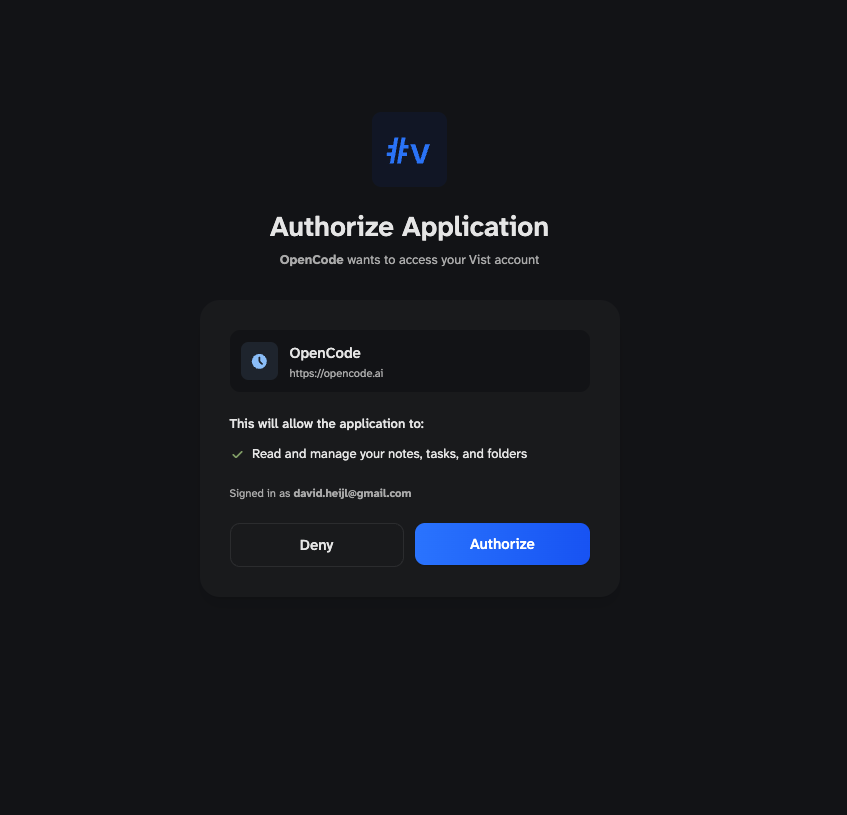
OpenCode is what handles authentication. Under the MCP OAuth specification, the client (OpenCode) runs the OAuth 2.1 / PKCE handshake with the Vist authorization server, completes a one-time browser-based login, and then injects bearer tokens into the session automatically from that point on. You authenticate once; the local model never sees credentials.
Add Vist to your OpenCode MCP config
In your ~/.config/opencode/config.json, add an mcp section:
{
  "$schema": "https://opencode.ai/config.json",
  "provider": {
    "ollama": {
      "npm": "@ai-sdk/openai-compatible",
      "name": "Ollama (local)",
      "options": {
        "baseURL": "http://localhost:11434/v1"
      },
      "models": {
        "gemma4:26B": {
          "name": "Gemma4:26B"
        }
      }
    }
  },
  "mcp": {
    "vist": {
      "type": "remote",
      "url": "https://app.usevist.dev/mcp"
    }
  }
}
So, the first time you launch OpenCode after adding the MCP entry to config.json, you will get prompted to authenticate.
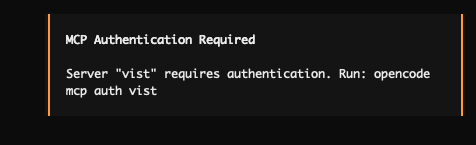
To do that, run this command from the terminal:
opencode mcp auth vist
That triggers the OAuth login flow in the browser. Just sign in with your Vist account, and authorize the OpenCode connection. This is a one time connection, sessions will be silently resumed whenever you run OpenCode.
If you're on an older version of OpenCode that doesn't yet support MCP OAuth, you can fall back to a personal API token from Settings → API in Vist, and add it manually:
"headers": {
  "Authorization": "Bearer YOUR_VIST_API_KEY"
}
But the OAuth path is cleaner and worth using if your OpenCode version supports it.
Tell your agent to use it
At the start of a coding session, instruct the agent explicitly, or add it to your project's AGENTS.md file.
Call load_context from the Vist MCP server before we start.
The agent will call the tool, get your context back, and you can start working without re-explaining your project. At the end of a meaningful session, you can ask it to persist what changed:
Update the Vist project state with what we accomplished today.
The tools available through the Vist MCP server include load_context, create_note, create_task, search_knowledge_base, record_memory, and update_project_state.
You can use them directly in conversation or let the agent call them as needed:
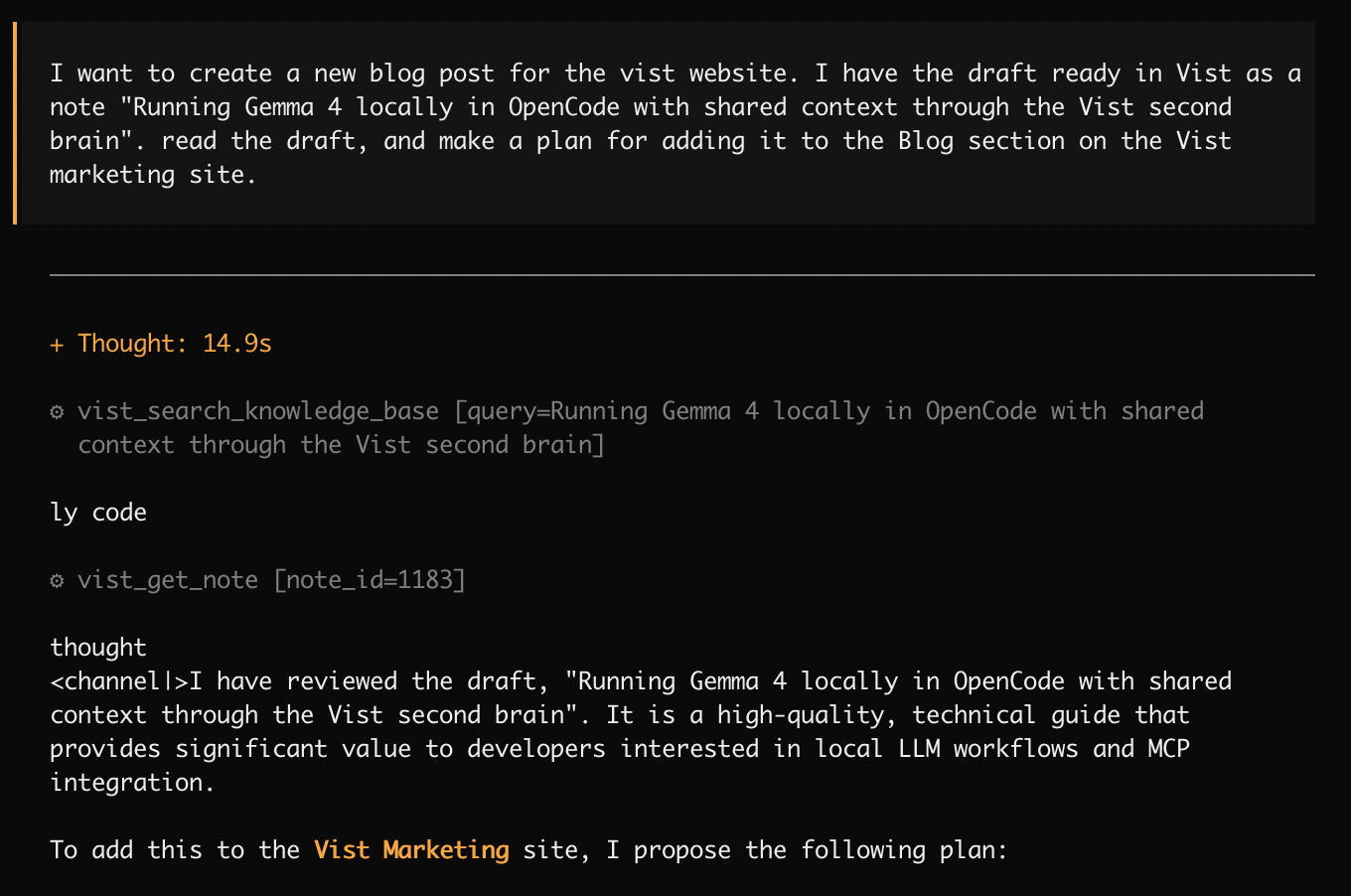
In this screenshot, you can see that Gemma called the Vist MCP tools (searched for the note, retrieved its contents) without being instructed to do so explicitly, and used the information to build its plan. You can also see some thought process tokens leaking through, to remind us that we are on the cutting edge of what these local models can do.
A note on performance
Gemma 4 26B on an M-series Mac with 32 GB will generate around 15–25 tokens per second, depending on your chip generation. That's fast enough for conversational coding work — not as instant as a cloud API, but usable.
Context window is the other variable. Both Gemma 4 and Qwen 3.5 support large context windows natively: Gemma 4 scales up to 256K tokens; Qwen 3.5 supports 32K+ out of the box. Ollama will use the model's native defaults, so you're not starting from a tiny window anymore.
That said, large context windows consume memory. If you're on the edge of your RAM budget, you can cap num_ctx to trade context size for headroom:
OLLAMA_NUM_CTX=16384 ollama run gemma4:26B
Why bother, when cloud models exist?
Reasonable question. The cloud models are faster and, on raw benchmark scores, still ahead of what runs locally at this size.
Three reasons to run locally anyway.
Cost. A Gemma 4 26B running on your laptop costs you nothing per token. If you're using an AI coding agent for sustained daily work, the API bills add up. Running local for the bulk of the work and reaching for a cloud model only for the hard problems is a sensible split.
Privacy. Your codebase doesn't leave your machine. If you're working on anything proprietary — which, if you're at a company, you almost certainly are — sending code to a third-party API is a policy question at minimum and a liability question in some jurisdictions. Local inference sidesteps it entirely.
Offline. Trains, planes, spotty hotel wifi. A local model doesn't care.
The Vist MCP connection gives you the best of both: local inference for the coding work, but with a cloud-synced knowledge base that persists your context and makes the local agent behave like it has memory.
Summary
- Ollama installed — Local inference server running on port 11434
- Gemma 4 26B pulled — ~19 GB, fits in 32 GB unified memory with room to spare
- OpenCode installed — AI coding agent connected to your local model
- Vist MCP connected — Persistent memory and task context across sessions, authenticated via OAuth
The full setup takes under an hour. After that, you have a coding agent that runs offline, costs nothing per token, and remembers your projects.
Vist is available at usevist.dev. The MCP server is available to all accounts. If you run into issues with the MCP connection, the Discord is the fastest way to get help.